
























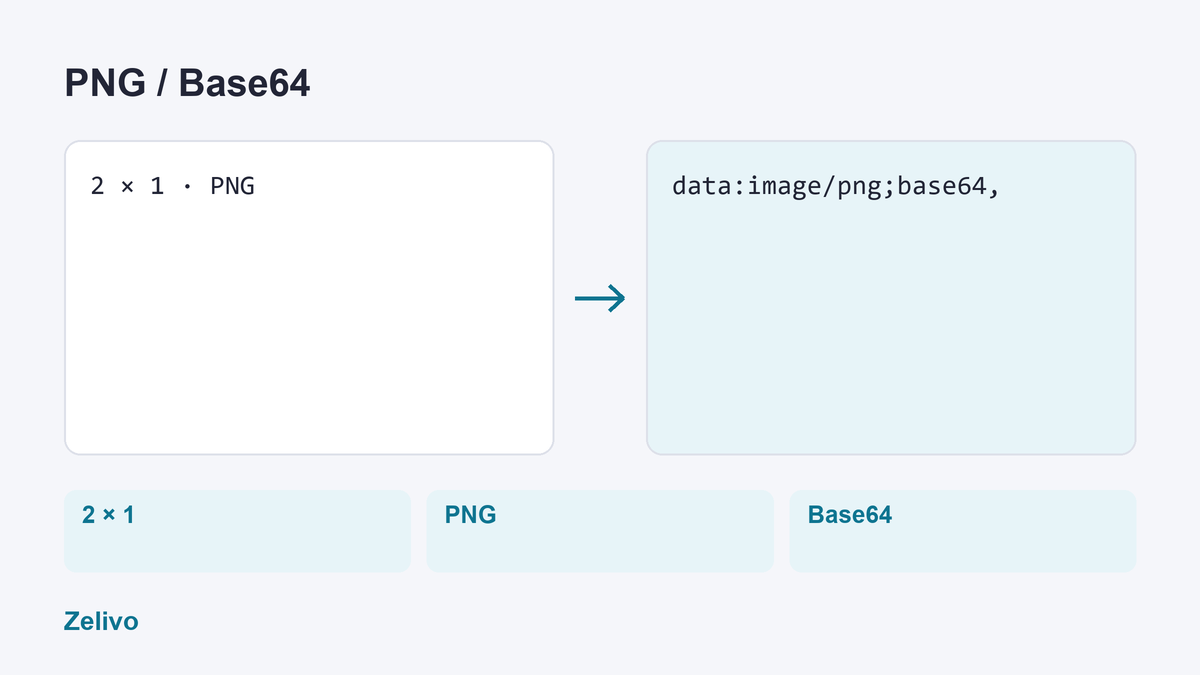
This Zelivo workflow demonstrates a complete Base64 image roundtrip using one exact 2 × 1 PNG fixture. The image contains two pixels in a single row: first red, then blue. The goal is to represent the original PNG bytes as a data URL, then recover those bytes as an image without changing the file’s content. Base64 is an encoding method, not compression and not encryption. It makes binary bytes portable as text, while the data URL prefix identifies the media type and encoding. The workflow therefore has two separate concerns: preserving the exact byte sequence and confirming that the restored image looks correct. The documented example uses the supplied PNG fixture, its complete reference data URL, and a small set of checks that catch missing prefixes, truncated payloads, altered punctuation, and mistaken expectations about visual inspection. Follow the conversion steps in order, retain the entire string, and verify both dimensions and pixel order before treating the roundtrip as successful.
1. Encode the exact PNG as a data URL
Begin with the saved 2 × 1 PNG example, whose pixels are ordered first red and then blue. Upload that exact file to Zelivo’s image-to-Base64 workflow and convert it. Copy the entire result, including the prefix data:image/png;base64, rather than copying only the characters after the comma. A data URL has a media-type header, an encoding marker, a comma separator, and the Base64 payload. The payload represents the PNG file bytes; it does not describe the pixels independently and it does not compress the image. Compare the text you copied with the reference data URL below. The expected string begins with data:image/png;base64, and the documented payload must remain unchanged if you want an exact fixture match. Saving the output in a text file can help prevent accidental line breaks or omitted characters during later verification.
2. Decode the complete string back into an image
For the reverse operation, copy the complete example data URL, keeping both the header and the comma between the header and payload. Paste it into Zelivo’s Base64-to-image workflow and convert it, then download the restored PNG. Copy the complete reference data URL shown below. Open the downloaded file in an image viewer and inspect the two pixels: the image should be 2 pixels wide and 1 pixel high, with red first and blue second. If a workflow accepts only the payload, remove the header only when that input format explicitly requires it, and preserve the entire Base64 payload after the comma. Removing characters, changing punctuation, or pasting an incomplete string can make decoding fail or produce different bytes.
data:image/png;base64,iVBORw0KGgoAAAANSUhEUgAAAAIAAAABCAIAAAB7QOjdAAAACXBIWXMAAA7EAAAOxAGVKw4bAAAAD0lEQVQImWN4ZmOjkfcMAAnBAtuPdGM6AAAAAElFTkSuQmCC3. Verify bytes, dimensions, and appearance separately
A reliable roundtrip uses more than one kind of verification. First, check the decoded image dimensions: the expected result is 2 × 1. Second, inspect the pixel order and confirm that red is first and blue is second. This validates appearance and the documented fixture, but visual inspection alone cannot prove byte equality because different PNG files can display the same pixels. For byte-level confidence, compare the restored PNG’s bytes with the original saved PNG using a file hash or another exact binary comparison available in your workflow. If the bytes match, the roundtrip preserved the file exactly; if the image looks identical but the bytes differ, metadata or encoding details may have changed. Also confirm that the output starts with data:image/png;base64, before decoding and that the comma is present. These checks distinguish a correct conversion from a merely plausible-looking image.
4. Understand overhead, privacy, and practical limits
Base64 makes binary data easier to place in text, but it increases the representation size compared with the original bytes; it is not a compression step. The data URL also carries a prefix, so the complete string is larger than the encoded payload alone. This overhead is reasonable for a tiny 2 × 1 PNG, but it can become inefficient for larger images, repeated assets, logs, database fields, or systems with strict text-length limits. A data URL contains the original image data in an easily recoverable form, and anyone who obtains the string can decode it, so it should not be treated as encryption or as a protection mechanism. Preserve the original file when exact archival recovery matters, keep the complete string when sharing a fixture, and choose ordinary file storage or a dedicated transfer method when size, caching, access control, or operational scale is important.
- The string starts with data:image/png;base64, and keeps the comma.
- The decoded image measures 2 × 1, with red first and blue second.
- For exact recovery, compare restored bytes with the original, not appearance alone.
