
























This guide follows one small order record through four Zelivo tools: json-viewer, json-editor, json-validator, and json-formatter. The specimen contains a quoted identifier and an items array, so every change can be checked against visible source values. Work in the stated order and keep an untouched copy of the original text.
Trace the nested order in the viewer
Begin with the order specimen in the JSON viewer. It contains id as the quoted string 001 and two array values, Tea and Coffee. Load that exact JSON, then expand order followed by items. This exposes the requested path without manually counting brackets in the source.
Read the displayed path order → items → [0] and compare its value with the first source-array entry. The viewer should show Tea, while the identifier remains 001. This check confirms that the tree view represents both nesting and array position correctly before you edit anything.
{"order":{"id":"001","items":["Tea","Coffee"],"active":true}}Change one property in the editor
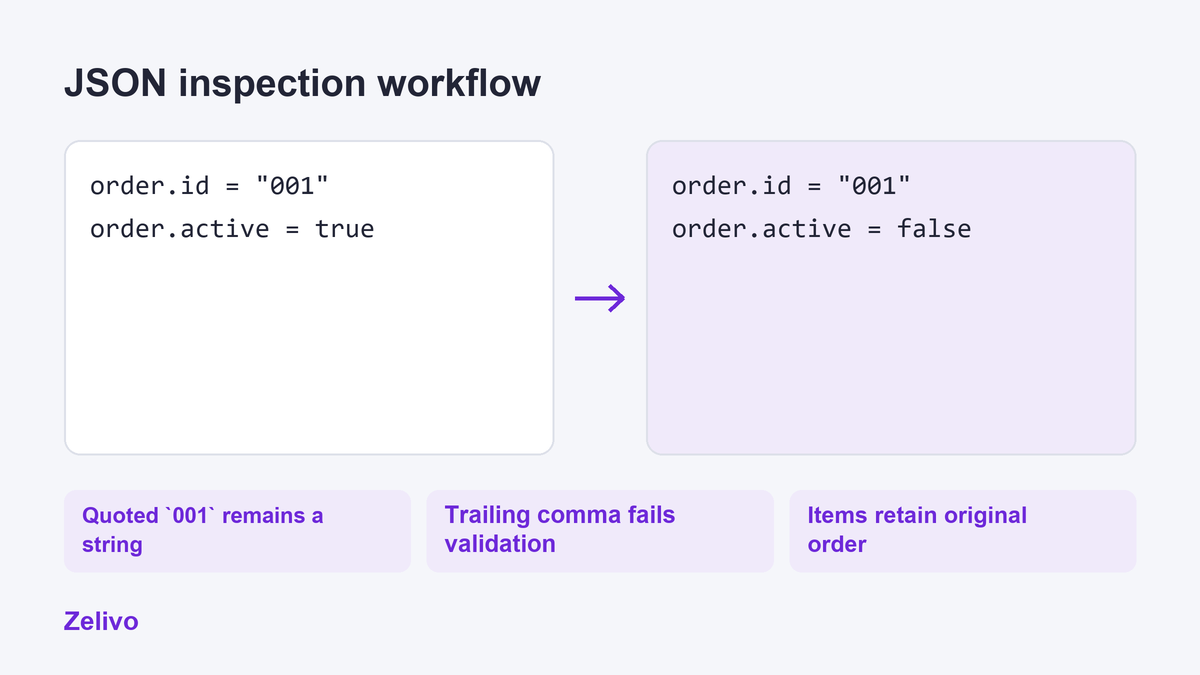
Open the same object in the JSON editor and locate active inside order. Replace only its current value true with false, then validate the edited JSON. If you save or download a copy, reopen that copy to verify what the next recipient will receive.
Compare the new order with the original. The quoted text 001 is still the value of id, and the items array still starts with Tea and ends with Coffee. Only the active flag changed. Keep the identifier in double quotes so a JSON reader sees a string.
{"order":{"id":"001","items":["Tea","Coffee"],"active":false}}Catch and correct a trailing comma
Use json-validator on {"ready":true,}. The comma directly before } is not allowed in standard JSON, so the first validation should fail. Locate that exact character, remove only it, and validate {"ready":true} again. The corrected object should pass the syntax check.
This result verifies syntax, not business meaning. A passing object may still omit required properties, use an unexpected type, or violate application rules. Treat the validator as a gate before another tool reads the file, then perform any separate checks your application requires.
Format the final specimen and reuse carefully
Paste {"item":"notebook","stock":[2,0],"active":true} into json-formatter. Compare the formatted output line by line: notebook, the two stock values 2 and 0, and boolean true must all remain. Test a separate copy with a trailing comma to observe the validation response without risking the clean sample.
Formatting changes layout, not meaning, when the input is valid. Keep large identifiers quoted whenever every digit matters, because browser number handling can lose precision. Preserve the original samples, validate after edits, and reopen downloaded files before sharing or feeding them into another tool.
- Confirm
order → items → [0]equalsTea. - Confirm
activeisfalseandidremains001. - Confirm the trailing-comma sample fails, then the corrected object passes.
