
















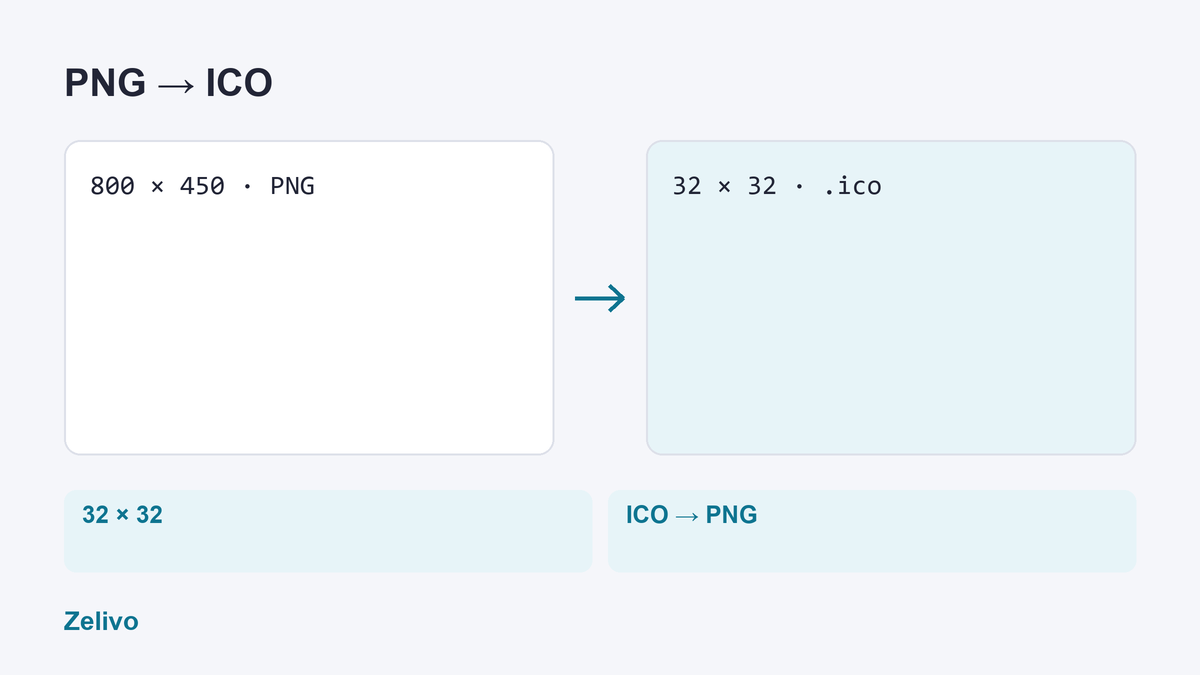
A small icon slot often expects a square ICO, even when the source artwork is a wide transparent PNG. The practical challenge is to fit the artwork into the requested frame without stretching it, losing transparency, or downloading more files than you need. In the documented example, an 800 × 450 PNG is converted to a 32 × 32 ICO. The landscape image keeps its original proportions, while the unused square area becomes transparent padding. This approach is useful for compact interface icons, provided that you verify both the file type and the actual pixel dimensions after conversion. The workflow also distinguishes a single requested size from an all-sizes export, because those options produce different download results. Finally, converting the ICO back to PNG gives you an ordinary image file for visual inspection, especially when transparency is difficult to judge in an icon viewer.
Start with the right source and target
Save the 800 × 450 PNG example locally before beginning, then supply that local file to the converter. The source should remain a PNG if transparent edges or a transparent background are important. Choose 32 × 32 as the target size when the destination needs one compact square icon. This target is not a request to crop the landscape artwork into a square and is not permission to stretch it horizontally or vertically. Instead, the converter should scale the artwork proportionally until it fits inside the 32 × 32 frame, leaving spare transparent space where the aspect ratio requires it. Before converting, decide whether the destination needs one exact file or a collection of icon sizes; that decision controls which output option is appropriate.
Convert one requested size
Run the PNG-to-ICO conversion with 32 × 32 selected, then download the resulting file. The expected result is 32 × 32 · .ico, and the download should be a 32 × 32 .ico file rather than an automatically generated set. A transparent landscape image should appear centered or otherwise contained within the square frame, with its proportions intact and transparent padding around the artwork when needed. View the icon at actual size and place it over a contrasting background if possible; this makes unwanted opaque borders, clipped edges, or missing transparency easier to notice. If the workflow offers an all-sizes option, remember that it makes separate downloads. Select one size when the requirement is a single 32 × 32 file. Do not treat the presence of additional files as proof that the requested conversion succeeded.
Compare ICO output with the all-sizes option
The single-size workflow is best when a consuming system specifies exactly 32 × 32 and you want a predictable, easy-to-audit download. An all-sizes workflow serves a different purpose: it creates separate downloads for multiple requested dimensions, which can be useful when several slots need different assets but can create unnecessary files for a one-size task. Compare the two outcomes by checking the number of downloads, each file’s extension, and the pixel dimensions of the relevant icon. For this example, the single requested output should remain 32 × 32 · .ico. Keep the naming and selected size clear during the export so that a similarly named file from an all-sizes run is not mistaken for the intended deliverable. The conversion itself does not guarantee that every viewer will display transparency identically.
Extract the ICO and verify it as PNG
Use the ICO-to-PNG workflow to inspect the finished icon in an ordinary image viewer. Save the 32 × 32 ICO example, upload it from the device, convert it, and save the generated PNG. The expected result is 32 × 32 · .png. Open that PNG at actual size and view it over a contrasting background to inspect the transparent area, artwork boundaries, and any accidental background color. Confirm that the PNG is still 32 × 32; this verifies the frame size without relying only on the original converter label. The sample ICO has one embedded size, so it produces one inspectable PNG. An ICO containing multiple sizes can produce a separate PNG for each size, and those outputs should be checked individually. A successful extraction confirms dimensions and visible transparency, but it cannot prove that a particular application will scale the icon attractively at every display size.
- Confirm the download is a 32 × 32 .ico file.
- Confirm proportions remain intact and spare space is transparent.
- Extract and verify a 32 × 32 .png over a contrasting background.
