
























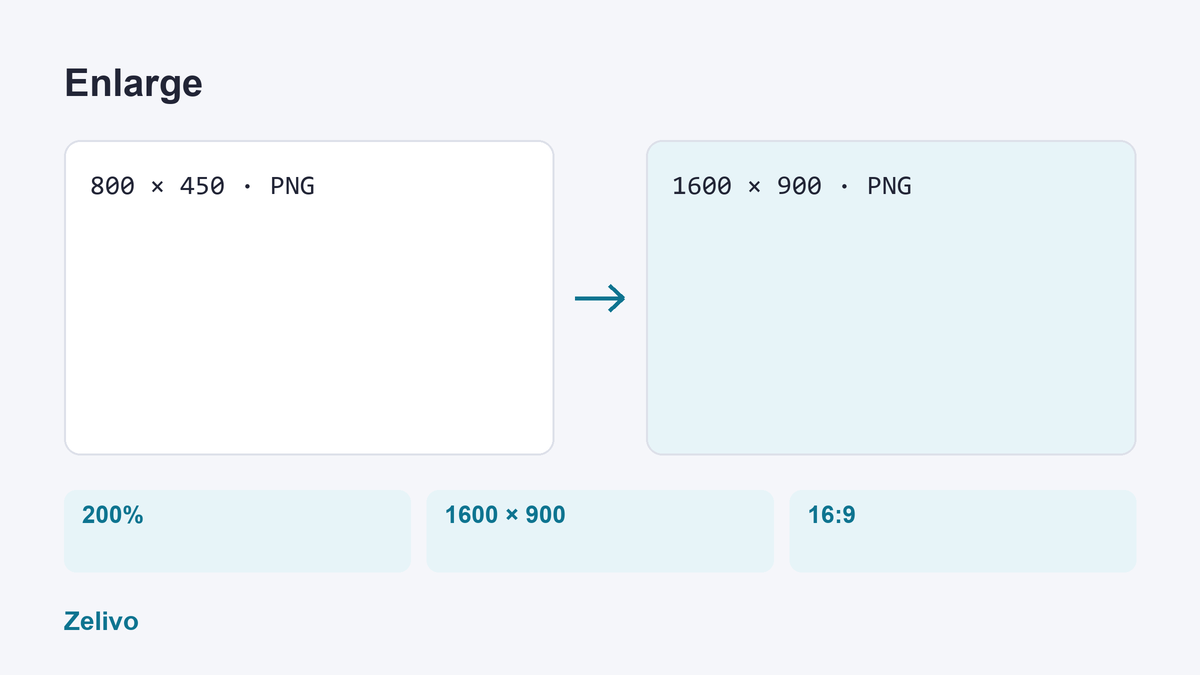
Image enlargement changes the size of a raster file, but it does not recover visual information that the original never recorded. In this Zelivo example, an 800 × 450 PNG is enlarged to 200%, producing a 1,600 × 900 PNG with the same composition. The result contains four times as many pixels because both width and height are doubled, yet those additional pixels are calculated from neighboring pixels rather than captured from a sharper source. That distinction matters when preparing images for websites, presentations, print layouts, or any output that needs twice the original width and height. A larger copy can improve placement, reduce visible pixelation at a practical display size, and meet a technical dimension requirement, but it cannot reliably recreate fine text, hair, texture, or crisp edges that were absent from the input.
What the 200% Example Actually Changes
The documented workflow starts with an 800 × 450 PNG. Upload that file to the image-enlarger, set the scale to 200%, enlarge the image, and download the PNG. Because 200% doubles the original width from 800 to 1,600 and the original height from 450 to 900, the downloaded file should measure 1,600 × 900 and remain a PNG. The scene, subject placement, cropping, and overall composition should stay the same; enlargement is not a reframing operation. The main change is the raster grid: the output has 1,440,000 pixels, compared with 360,000 pixels in the source, which is four times the pixel count. That increase describes storage and sampling density, not four times the original information. The tool must estimate values for the newly inserted pixels, so the output may look smoother or less jagged while still remaining fundamentally dependent on the 800 × 450 source.
How to Compare Edges Fairly
A useful verification compares corresponding edges in two ways. First, view the original and the 1,600 × 900 PNG at the same displayed physical size. This matched display-size comparison shows whether the enlarged copy appears smoother, whether contours remain stable, and whether obvious blockiness has been reduced. Second, inspect the files at pixel view or at a one-to-one scale. Pixel view exposes the estimated transitions created between existing samples: diagonal lines may look softened, tiny lettering may remain unreadable, and fine texture may appear blurred or artificially smooth. Do not judge the larger file only by zooming it until it occupies more screen space, because that changes the viewing conditions. Check a known feature in the original, such as the boundary between two colored shapes, and locate that same feature in the enlarged copy. A smoother boundary shows how the new pixels were estimated.
800 × 450 at 200% = 1600 × 900
800 × 450 = 360000 pixels
1600 × 900 = 1440000 pixels
Why Four Times the Pixels Is Not Four Times the Detail
Interpolation is the central limitation. When the source width and height are doubled, the enlargement process inserts pixels between known pixels and assigns them estimated colors. Depending on the method, those estimates can create smoother gradients and cleaner-looking boundaries, but they do not reveal an original edge that was never sampled or a texture that was already lost through blur, compression, or low resolution. The 1,600 × 900 PNG therefore has four times the number of pixels, while its recoverable visual evidence still comes from the same 800 × 450 PNG. This is why enlargement can satisfy a dimension requirement without making the image equivalent to one captured natively at 1,600 × 900. A stronger source file, better lighting, sharper focus, or a higher-resolution original is usually more valuable than repeatedly enlarging the same copy.
Practical Limits and Final Checks
After downloading, read the pixel dimensions from the file properties and confirm that the file is exactly 1,600 × 900 and retains the PNG format. Open it beside the 800 × 450 source and verify that the composition matches: no unintended crop, stretch, rotation, or content substitution should appear. Then perform both checks described above: matched display size for overall appearance and pixel view for interpolation artifacts. The enlarged file is appropriate when a workflow specifically needs twice the original width and height, when the composition is already correct, or when modest smoothing is acceptable. It is not a dependable fix for unreadable text, missing facial features, severe blur, or details needed for close inspection. Keep the original 800 × 450 PNG so later comparisons remain possible, and avoid treating the 1,600 × 900 output as proof that the source contained information it did not.
- Confirm the source is an 800 × 450 PNG.
- Confirm the download is a 1,600 × 900 PNG.
- Compare edges at matched display size and pixel view.
